

Android is packed with features that rarely get much attention.
While AI tools and major Android updates usually steal the spotlight, it’s often the built-in shortcuts that have the biggest impact on how quickly I can get things done.
After I started using them, everyday tasks became noticeably faster and far less frustrating.
From jumping straight to my favorite features to launching actions without searching through menus, these are the Android shortcuts I use every day.
Double-pressing the power button launches the camera


Some of my favorite photos are the ones I would have missed if I’d spent a few extra seconds unlocking my phone and opening the Camera app.
That’s why the first Android shortcut I enable on every new phone is the ability to launch the camera by double-pressing the power button.
The shortcut works even when the screen is off or when the phone is locked. I can go from a pocketed phone to a ready-to-shoot camera in a fraction of a second.
Whether I spot an amazing sunset, a funny moment with friends, or my pet doing something unexpected, I don’t waste time navigating through my home screen.
Many Android phones include this gesture, although the exact settings menu varies by manufacturer.
On most Android devices, you can find the option in Settings by searching for the camera or power button.
On Pixel phones, it’s under Settings > System > Gestures > Double press power button.
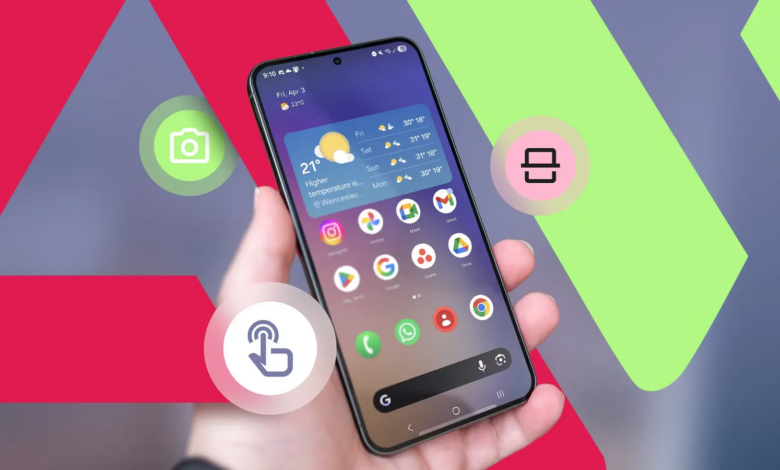
Long-pressing app icons for common actions

One of the easiest ways I’ve cut down on unnecessary taps is by long-pressing app icons instead of opening the app first.
Many Android apps include built-in shortcuts that take you directly to common tasks, but they’re easy to overlook.
For example, I can long-press the Gmail icon to compose a new email, Google Maps to start navigating home or to work, and YouTube to jump straight to Shorts or subscriptions.
Many popular apps offer similar shortcuts, although the specific actions available depend on the app developer.
Additionally, Android allows you to turn these shortcuts into permanent icons on your home screen.
To do this, long-press an app icon until its shortcuts appear, then touch and hold the desired shortcut and drag it onto your home screen.
 Quiz
Quiz
Android shortcuts trivia
Trivia challenge
Swipes, taps, and hidden tricks — see how well you really know your way
around Android.
GesturesNavigationQuick SettingsAccessibilityApps
Which gesture lets you quickly switch between your two most recently used apps in
Android’s gesture navigation mode?
That’s right! Swiping horizontally across the gesture bar at the bottom
of the screen lets you quickly flip between your two most recent apps without opening the full recents
view. It’s a huge time-saver once it becomes muscle memory.
Not quite — the correct answer is swiping across the bottom gesture bar
from left to right. This quick swipe toggles between your last two used apps instantly, making
multitasking much faster than opening the full app switcher.
How do you access the full Quick Settings panel (all tiles) on a stock Android
device from the lock screen or home screen?
Correct! You can reach the full Quick Settings panel either by swiping
down with two fingers in one motion, or by swiping down twice with a single finger. Android gives you
two ways to get there, which is handy depending on how you’re holding your phone.
The answer is actually both A and C — Android supports two methods for
jumping straight to the full Quick Settings panel. A single two-finger swipe or two consecutive
single-finger swipes both get you there, giving you flexibility based on how you hold your device.
What happens when you swipe up and hold from the bottom of the screen in Android’s
gesture navigation mode?
Spot on! Swiping up and pausing before lifting your finger triggers the
recent apps view, letting you browse, switch, or close running apps. The slight hold is what
differentiates it from a standard home gesture, which is a quicker upward flick.
Not quite. Swiping up and holding from the bottom edge opens the recent
apps (multitasking) view. A quick upward swipe goes home, but holding the gesture mid-way tells Android
you want to see what’s running in the background instead.
Which Android shortcut is used to quickly toggle TalkBack on or off without diving
into settings?
Correct! Holding both volume keys at the same time for three seconds is
Android’s built-in shortcut to toggle TalkBack. It’s designed to be discoverable even if the screen
isn’t visible, which makes it especially useful for visually impaired users.
The right answer is holding both volume keys simultaneously for three
seconds. This accessibility shortcut is intentionally placed on physical buttons so that TalkBack can be
toggled even if the user cannot see or interact with the touchscreen.
On most Android launchers, what action lets you see app shortcuts (like quick-action
options) for a specific app icon?
Well done! Long-pressing an app icon reveals app shortcuts — contextual
actions like composing a new message, starting a new tab, or jumping straight to a specific section of
an app. Developers define these shortcuts through the Android API, so they vary by app.
The correct answer is long-pressing the app icon. This reveals app
shortcuts, a feature introduced in Android 7.1 that lets developers expose quick actions directly from
the home screen, so you can skip several steps inside the app itself.
In Android’s three-button navigation mode, what does a long-press on the square
(recents) button typically do on stock Android?
That’s correct! Long-pressing the recents button in three-button
navigation mode activates split-screen mode for the current app. It’s one of the faster ways to set up
multitasking on Android without digging into the recents view first.
Not quite — long-pressing the recents (square) button in three-button
nav mode triggers split-screen mode. This pins the current app to the top half of the display and lets
you pick a second app from your recent list or app drawer to fill the bottom.
Which of the following is NOT a default Quick Settings tile found on stock Android
14?
Right! A RAM booster tile does not exist in stock Android’s Quick
Settings — that kind of feature is more associated with older third-party Android skins and apps. Stock
Android manages memory automatically and doesn’t offer or need a manual RAM-clearing shortcut.
The odd one out is the RAM booster — stock Android 14 has no such Quick
Settings tile. Flashlight, screen record, and airplane mode are all genuine default tiles. Android
handles memory management automatically, so a manual RAM boost tile is a relic of older custom skins,
not a stock feature.
What is the function of the ‘back tap’ or ‘tap to back’ feature available on some
Android devices and third-party apps?
Correct! Back tap (popularized by Apple but available on Android via
apps like Tap, Tap or built into some skins) uses the phone’s accelerometer to detect taps on the rear
of the device and trigger assigned shortcuts — like taking a screenshot or launching an app. It’s a
clever way to add extra input methods without extra buttons.
The right answer is that back tap lets you trigger customizable actions
by physically tapping the rear of your phone. Apps like Tap, Tap bring this feature to Android by using
accelerometer data to detect the knocks and map them to shortcuts like screenshots, media controls, or
launching apps.
Your Score
/ 8
Thanks for playing!
Copying text from the Recent Apps screen


One Android shortcut I use almost every day is copying text directly from the Recent Apps screen.
It’s incredibly useful when an app won’t let me highlight text, whether it’s a social media post, a confirmation number, or a message.
Instead of taking a screenshot or typing everything manually, I can copy the text in seconds.
On Google Pixel phones, swipe up and hold to open the Recent Apps (Overview) screen, then tap Select below the app preview.
You can highlight and copy text directly from the app preview without reopening the app. You can also share the text or search for it immediately.
I’ve used it countless times to copy tracking numbers, addresses, recipe ingredients, and snippets of text from apps that don’t normally support text selection.
Using Quick Settings tiles instead of opening Settings

I used to open the Settings app far more often than I needed to.
Whether I wanted to turn on Do Not Disturb, enable Battery Saver, switch on the flashlight, or start a screen recording, I’d instinctively head to Settings first.
When I started relying on Quick Settings tiles instead, I realized most of those actions were only a swipe and a tap away.
Swipe down from the top of the screen to open Quick Settings, then tap a tile to toggle features like Bluetooth, Wi-Fi, Flashlight, Do Not Disturb, or Battery Saver.
Pressing and holding a tile jumps straight to its detailed settings page if you need more control.
The real productivity boost comes from customizing the panel with the shortcuts you use most.
Swipe down twice, tap the Edit button (pencil icon), and drag your favorite tiles into the top rows so they’re always within easy reach.
I keep Screen Record, Quick Share, Device Controls, and Battery Saver at the top, which saves me from digging through the Settings app several times a day.
Split screen made multitasking much less frustrating


There are plenty of times when one app isn’t enough.
I might be comparing prices in Chrome while taking notes in Google Keep, copying details from an email into Google Maps, or following a recipe while adding ingredients to my shopping list.
Instead of constantly switching back and forth between apps, I use Android’s split screen mode to keep both on screen at the same time.
On most Android phones, it’s easy to enable. Open the first app, swipe up and hold to open the Recent Apps screen, tap the app’s icon, and choose Split screen.
Then select the second app you want to use, and Android places the two apps one above the other.
You can drag the divider between them to give one app more space or exit split screen by dragging the divider to the top or bottom of the screen.
Circle to Search eliminated countless app switches

Before Circle to Search, looking up something on my screen meant breaking my flow.
I’d copy text into Google, take a screenshot to use with Google Lens, or switch between apps just to identify a product, translate a phrase, or learn more about something I was reading.
Now, I rarely have to leave the app I’m using.
Whenever something catches my attention, I press and hold the Home button or navigation handle to activate Circle to Search.
I can circle an object, highlight text, tap an image, or scribble over anything on the screen to search for it instantly.
The results appear as an overlay so I can get the information I need and jump right back to what I was doing without interrupting my workflow.
Circle to Search is available on select Android devices, including recent Google Pixel phones and many flagship devices from Samsung and other manufacturers.
Sharing files with Quick Share

Sending files between my Android phone and other devices used to involve cloud storage, messaging apps, or emailing myself attachments.
Now, whenever I need to move a photo, PDF, or document, I prefer Quick Share.
To use it, open the photo, video, document, or other file you want to send, tap Share, and select Quick Share.
Nearby compatible devices automatically appear, and when the recipient accepts the request, the transfer begins.
Quick Share works with Android phones and tablets, Chromebooks, and supported Windows PCs, making it one of the fastest ways to move files without relying on cloud storage or messaging apps.
Android’s best shortcuts are already built in
Some of the most useful Android shortcuts are already built into your phone; you have to know where to find them.
Before I started using these features, I spent far more time navigating menus, switching between apps, and repeating the same actions.
Now, many of those tasks take just a tap or two.
Whether it’s launching the camera with the power button, using Circle to Search to avoid switching apps, or sharing files instantly with Quick Share, these shortcuts have made my phone feel noticeably faster to use.
If you’ve never taken the time to explore Android’s built-in shortcuts, you might be surprised by how much time they can save without installing a single app.
نشر لأول مرة على: www.androidpolice.com
تاريخ النشر: 2026-07-18 17:00:00
الكاتب: Anu Joy
تنويه من موقع “beiruttime-lb.com”:
تم جلب هذا المحتوى بشكل آلي من المصدر:
www.androidpolice.com
بتاريخ: 2026-07-18 17:00:00.
الآراء والمعلومات الواردة في هذا المقال لا تعبر بالضرورة عن رأي موقع “beiruttime-lb.com”، والمسؤولية الكاملة تقع على عاتق المصدر الأصلي.
ملاحظة: قد يتم استخدام الترجمة الآلية في بعض الأحيان لتوفير هذا المحتوى.